
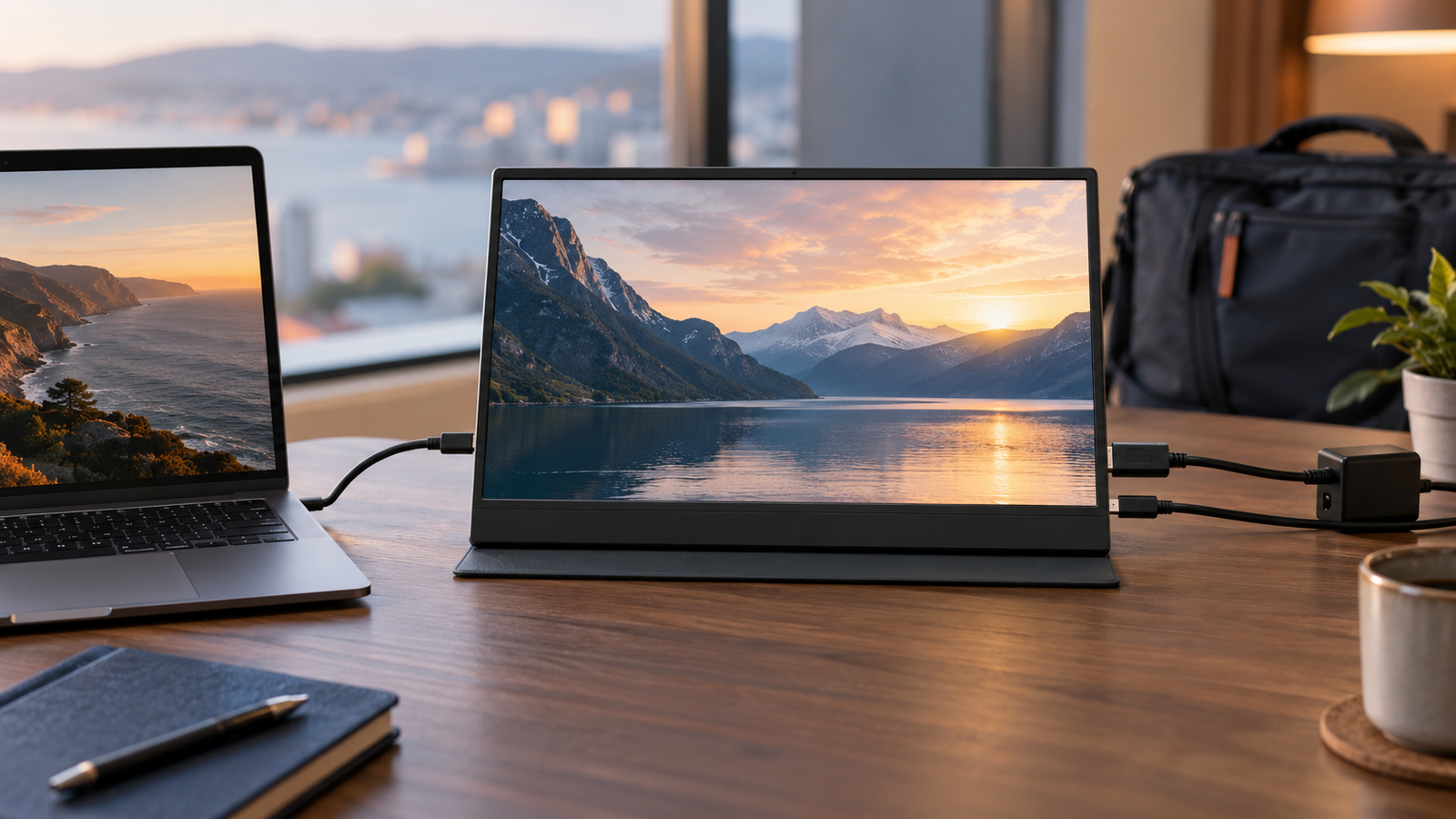
USB-C looks like the obvious connection for a portable monitor because one small cable can sometimes carry video and power. The catch is that not every USB-C port can output video. HDMI is less elegant for a travel setup, but it can be the more predictable video route when a laptop or console has a dedicated HDMI output.
Quick answer
If you are choosing the display itself, see our Best Portable Monitor guide or the more laptop-focused Best Portable Monitor for a Laptop guide.
USB-C vs HDMI at a glance
| Connection | Main advantage | Main limitation | Best fit |
|---|---|---|---|
| USB-C with DisplayPort Alt Mode | Can combine video and, on supported hardware, power in one cable | A USB-C connector alone does not prove video support | Modern laptops and tablets with documented USB-C display output |
| HDMI | Clear dedicated video connection on many laptops and consoles | Portable monitor normally needs separate power | Consoles, older laptops and systems without USB-C video |
| USB data / DisplayLink-style solution | Can provide display output on some systems without native DP Alt Mode | May require drivers and is product-specific | Only when the monitor explicitly supports that method |
A USB-C socket does not guarantee monitor support
USB-C describes the connector shape, not every feature available through it. VESA’s DisplayPort Alt Mode lets compatible USB-C ports carry DisplayPort video, but the computer and display both need the required capability. VESA’s current support page specifically warns that a system may have a USB-C connector that does not support DisplayPort on that port.
ASUS makes the same point in its current portable-monitor support guidance: USB Type-C can have different functions, and users should verify that the computer’s USB-C port supports the display function before expecting plug-and-play video.
When USB-C is the best choice
USB-C is ideal when the laptop and monitor both document DisplayPort Alt Mode or another explicitly supported USB-C video method. On suitable hardware, one cable can provide a very clean mobile-desk setup with video and power travelling through the same physical connection.
That is particularly useful in hotels, shared offices and client sites because there is less to unpack and fewer cables to route across the desk. It also makes a portable monitor feel more like a natural extension of a laptop rather than a small television that needs separate signal and power leads.
When HDMI is the safer choice
HDMI is useful when the laptop, mini PC, game console or other source has a dedicated HDMI output but its USB-C port is data-only, charging-only or otherwise lacks video output. It can also make troubleshooting easier because the video path and power path are separate.
Current ASUS portable-monitor documentation gives a practical example: if a laptop does not support USB-C DisplayPort Alt Mode, compatible ZenScreen models can use HDMI for the video signal while USB-C is used as the monitor’s power input.
HDMI does not normally solve the power requirement
A portable display still needs energy. With a one-cable USB-C setup, the source device may be able to supply enough power to the monitor. With HDMI, plan on a separate USB connection or power adapter unless the exact monitor documentation says otherwise.
That extra cable is not necessarily a problem. External power can actually be useful when you do not want a portable monitor drawing energy from a laptop battery during a long working session.
Check the exact USB-C port on the laptop
Some laptops have several USB-C ports with different capabilities. One may support charging and DisplayPort while another is intended mainly for data. Do not assume that a second identical-looking socket behaves the same way.
Look for the laptop manufacturer’s port specification and wording such as DisplayPort, DP Alt Mode, Thunderbolt or documented external-display support. Port icons can help, but the exact manual or specifications page is the stronger source.
The cable matters too
A cable that physically fits does not automatically support the video mode you need. Use the cable supplied with the portable monitor where practical, or a cable whose specification explicitly supports the required display and power features. ASUS currently recommends using the USB-C cable included with the relevant ZenScreen models when diagnosing USB-C display compatibility.
If a portable monitor works through HDMI but not through USB-C, the source port and cable are two of the first things to verify before assuming the panel itself is faulty.
What about DisplayLink?
Some portable displays can produce video through a USB data connection using DisplayLink-style technology rather than native DisplayPort Alt Mode. ASUS’s current support documentation distinguishes this from DP Alt Mode and notes that the USB data route can require a driver.
That can be useful for a particular compatibility problem, but do not buy on the assumption that every USB monitor supports it. Confirm the exact monitor and operating-system requirements first.
For game consoles, HDMI is often simpler
Many consoles are designed around HDMI video output, so a portable monitor with a compatible HDMI input can be the straightforward route. The monitor will still need an appropriate power source. Check resolution, refresh-rate and audio support on the exact display rather than assuming every portable HDMI monitor can use every console mode.
Portable-monitor compatibility checklist
- Does the source device explicitly support video from the USB-C port you plan to use?
- Does the monitor accept DisplayPort Alt Mode over USB-C?
- Can the source supply enough power, or will the monitor use an external adapter?
- If using HDMI, which separate power connection does the monitor require?
- Does the chosen cable support the required video and power features?
- Are the desired resolution and refresh rate supported on that specific input?
- Do touch, USB hub or audio features require an additional USB data connection?
Frequently asked questions
Will any USB-C laptop work with a USB-C portable monitor?
No. The laptop’s specific USB-C port needs to support the video method required by the monitor. For native plug-and-play connections this is commonly DisplayPort Alt Mode.
Can USB-C carry power and video at the same time?
Yes on compatible hardware. VESA DisplayPort Alt Mode allows DisplayPort video over USB-C, and many portable displays are designed to receive video and power through one supported USB-C connection.
Does HDMI power a portable monitor?
Normally you should expect a separate power connection unless the monitor manufacturer states otherwise. Current ASUS ZenScreen guidance, for example, uses HDMI for video and USB-C DC input for power when USB-C video is unavailable.
Why does my USB-C cable charge devices but not show a picture?
The source port or cable may not support the required display mode. Check the laptop’s exact USB-C specification, the monitor’s supported input method and the cable capability.
Primary sources
- VESA — DisplayPort on USB Type-C help
- ASUS UK — identifying USB-C display support for portable monitors
- ASUS UK — ZenScreen MB169CK connection guidance
Final verdict
Choose the connection that your exact devices actually support. USB-C is the cleanest option when DisplayPort Alt Mode and power are documented on both sides. HDMI is the dependable fallback when USB-C video is missing, but budget for a separate power lead. The logo on the socket is not enough—check the port specification before buying.